Managing WordPress Plugins at Scale: A Practical Guide for Stable Websites
Installing plugins in WordPress is easy. Managing them well over time is not.
As a WordPress site grows, plugins quietly become one of the biggest sources of performance issues, security risks, and maintenance headaches. This article focuses on plugin management, not plugin shopping—how to control, evaluate, and maintain plugins as your site evolves.
Why Plugin Management Is a Real Skill
Most WordPress problems don’t come from WordPress core—they come from unmanaged plugins.
Common long-term issues include:
-
Plugins added “temporarily” and never removed
-
Overlapping functionality
-
Updates breaking layouts or features
-
Plugins no one remembers installing
Professional WordPress sites treat plugins as dependencies, not conveniences.
The Plugin Lifecycle
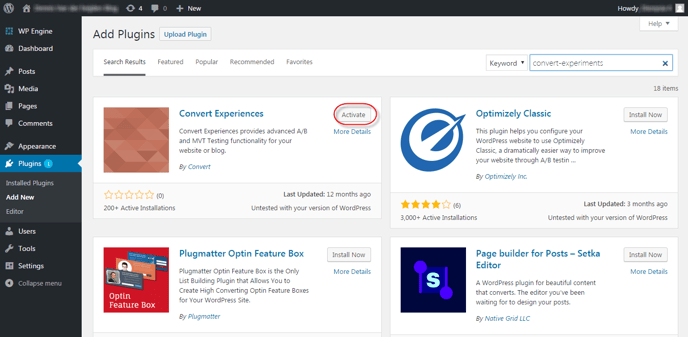
Every plugin should have a lifecycle—from installation to removal.
1. Evaluation
Before installing a plugin, ask:
-
Does this solve a real, ongoing problem?
-
Is it actively maintained?
-
Can this be handled with custom code instead?
2. Installation
Install plugins first on a staging environment. Never introduce unknown code directly into production.
3. Monitoring
Watch for:
-
Performance changes
-
Error logs
-
Conflicts after updates
4. Replacement or Removal
If a plugin becomes obsolete, bloated, or abandoned, plan its removal early.
Avoiding Plugin Overlap
One of the most common mistakes is installing multiple plugins that do the same thing.
Examples of Overlap
-
Multiple SEO plugins
-
Several security plugins running together
-
Page builders plus block libraries
-
Multiple caching tools
Overlap increases complexity and makes debugging difficult. One well-chosen plugin is almost always better than three average ones.
Custom Plugins as a Control Strategy
For site-specific functionality, custom plugins offer clarity and stability.
Benefits of Custom Plugins
-
No unused features
-
Better performance
-
Full control over updates
-
No vendor lock-in
Many professional WordPress teams move core functionality out of third-party plugins and into custom plugins as a site matures.
Plugin Updates Without Fear
Updates are necessary—but unmanaged updates are risky.
Safer Update Practices
-
Test updates on staging first
-
Update plugins in small batches
-
Read changelogs before clicking “Update”
-
Keep backups before major changes
Automatic updates can be useful for trusted, low-risk plugins—but not for everything.
Plugin Performance Audits
Plugins should be reviewed regularly.
What to Check
-
Does the plugin load assets on every page?
-
Does it add database queries?
-
Is it still being used?
-
Has it been updated recently?
If a plugin costs more than it delivers, it doesn’t belong on your site.
Security Starts with Plugins
Outdated or abandoned plugins are one of the most common attack vectors in WordPress.
Security Best Practices
-
Remove inactive plugins completely
-
Avoid plugins with poor update histories
-
Limit admin access
-
Use plugins only from trusted developers
Security plugins help—but prevention starts with smart plugin choices.
Documenting Your Plugin Stack
Documentation is often overlooked.
What to Document
-
Why each plugin is installed
-
Who chose it
-
What would break if it’s removed
-
Possible alternatives
This documentation is invaluable when teams change or problems arise.
When Fewer Plugins Is Not the Goal
A common myth is that “fewer plugins = better site.”
The real goal is:
-
Fewer unnecessary plugins
-
Clear responsibility for each plugin
-
Minimal overlap
-
Predictable behavior
A site with 30 well-managed plugins can outperform one with 5 poorly chosen ones.
Conclusion
WordPress plugins are powerful—but unmanaged power creates chaos. Treat plugins as part of your site’s architecture, not quick fixes. Review them regularly, document their purpose, and don’t be afraid to remove what no longer serves you.